

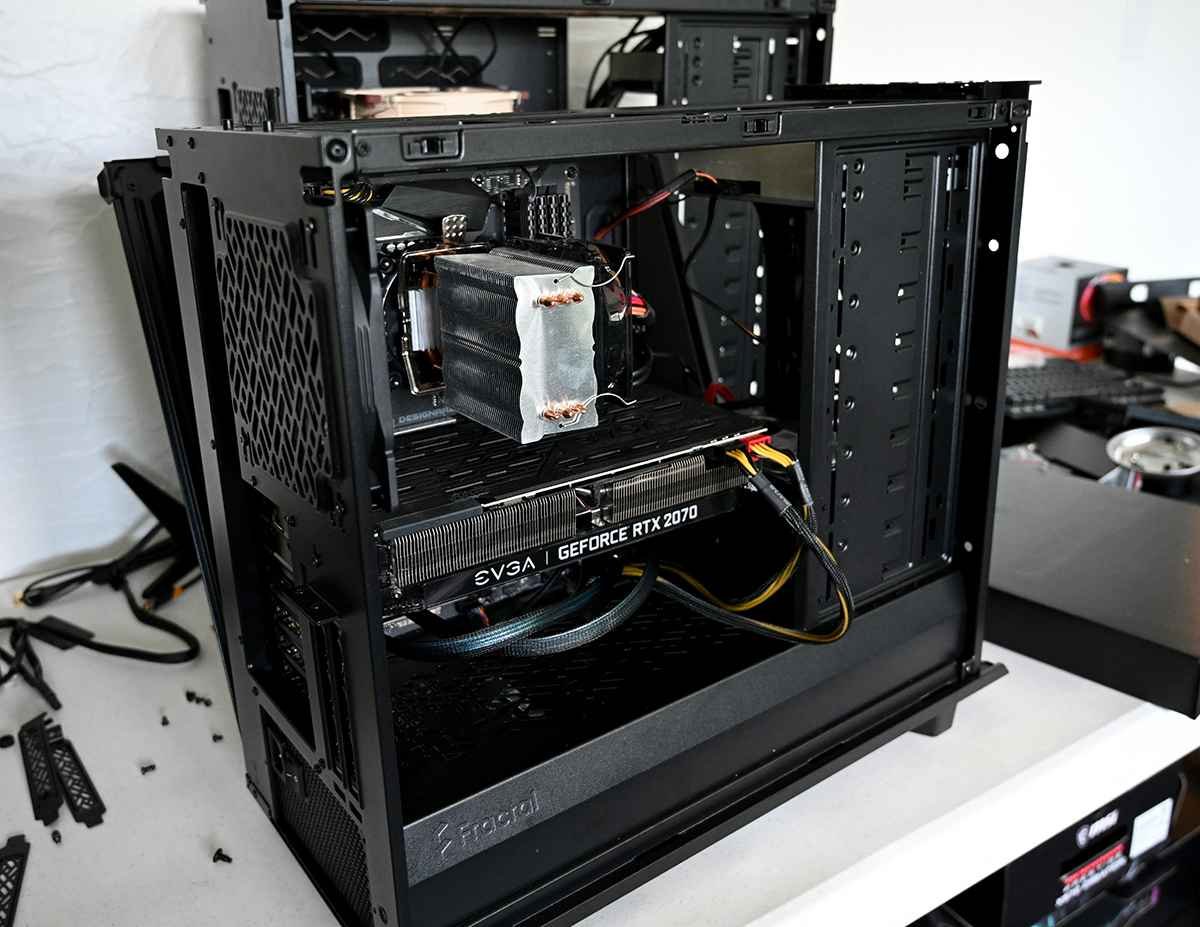
Alright, I’ll be the first to admit that I’m no expert when it comes to building PCs. Sure, I’ve built a couple of low-end rigs in the past—back when my biggest concern was whether it could run a browser and a game of Solitaire at the same time. But things have changed, both in the world of tech and in my own needs. These days, I need something far more powerful to handle image and video editing, with the occasional foray into gaming. Naturally, I decided it was time to dive into the deep end and build my own custom PC again. This time, though, I needed a machine that could handle some serious horsepower.
Here’s what I found during my research, and the steps I’ll take to build my ultimate custom PC.
Step 1: Research, Research, Research!
Before jumping headfirst into the world of PC building, I knew I needed to do some serious research. A lot has changed since the last time I built a PC, and I didn’t want to buy components that would be obsolete before they even arrived. I started by reading up on the latest hardware trends and watching a ton of YouTube videos. Channels like Linus Tech Tips and Gamers Nexus were lifesavers—they break down all the tech jargon into stuff I can actually understand. I also lurked on Reddit forums like r/buildapc to see what people were recommending for builds similar to what I needed.
Turns out, building a PC for video editing and gaming is all about finding the right balance between CPU, GPU, RAM, and storage. Each component has its own role, and if one is significantly weaker than the others, the whole system can suffer. So, I knew I’d need to make sure I was investing in the right parts, especially since I was willing to spend between $2,000 and $3,000. That’s a lot of dough, and I didn’t want to mess this up.
Step 2: Defining My Needs
I knew I’d be doing some pretty resource-heavy work. Image and video editing software like Adobe Premiere Pro and DaVinci Resolve are notorious for eating up CPU and RAM. But I also didn’t want to ignore the GPU, especially since gaming would be part of the equation. Games like Cyberpunk 2077 and Red Dead Redemption 2 aren’t going to play themselves on integrated graphics, right?
So, my main requirements boiled down to:
– A high-end CPU for video editing and multitasking.
– A powerful GPU that can handle both rendering video footage and high-quality gaming.
– At least 32 GB of RAM, because video editing loves to gobble up memory.
– Fast and large storage options, including an SSD for my operating system and software, and maybe even a secondary hard drive for storage.
Step 3: Choosing the Right CPU
From my research, I quickly learned that for video editing, the CPU is king. I found that two big names dominate the CPU market: Intel and AMD. It seems like the AMD Ryzen 9 7950X is the go-to choice for video editors these days. With 16 cores and 32 threads, it can chew through complex editing tasks like nobody’s business. Intel’s Core i9-13900K is also a great option, especially for gamers, but the AMD Ryzen chips seem to offer better multi-core performance, which is ideal for rendering and multitasking in editing programs.
After much deliberation, I’m leaning toward the Ryzen 9 7950X. It’s powerful, future-proof, and gets rave reviews from everyone who uses it for creative work. Plus, it’s a little cheaper than Intel’s top-end processors, which means I can splurge elsewhere in the build.
Step 4: Picking a GPU
Ah, the graphics card—also known as the component that’s likely to blow a hole in my budget. After scouring reviews, I narrowed my choices down to NVIDIA’s GeForce RTX 4080 or RTX 4090, and AMD’s Radeon RX 7900 XTX. The NVIDIA cards seem to be the reigning champions for both video editing and gaming, especially with their CUDA cores and Ray Tracing capabilities, which really come in handy when rendering videos.
However, the AMD Radeon RX 7900 XTX is a beast for the price, and AMD’s cards have really stepped up their game in terms of performance. The RX 7900 XTX performs nearly as well as the RTX 4080 in most gaming benchmarks and isn’t too shabby for video editing either. But since NVIDIA is known for better compatibility with editing software, I’m probably going to bite the bullet and go for the RTX 4080—it’s a good middle ground between power and price.
Step 5: RAM: The More, the Merrier
One thing I learned very quickly: You can never have too much RAM when it comes to video editing. 16 GB is the bare minimum, but for 4K video editing and multitasking, 32 GB is more realistic. After diving deep into user forums and Reddit threads, I found that many recommend Corsair Vengeance DDR5 32GB as a solid option. DDR5 is the new standard for RAM, and it offers better speed and efficiency over DDR4.
Honestly, though, I’m tempted to go for 64 GB—because why not? I don’t want to look back and think, “I should’ve gone bigger.”
Step 6: Storage: SSDs are the Key
From what I’ve gathered, the days of relying on hard disk drives (HDD) for speed are long gone. SSDs, specifically NVMe M.2 drives, are the new gold standard. They’re ridiculously fast, which is essential for loading large files quickly—whether that’s a 4K video project or the latest game. I found that the Samsung 980 Pro 1TB SSD is a fan favorite. It’s super fast, and most people seem to use it as their primary drive for the operating system and key software.
For storage, I’m also planning to get a large HDD (probably around 4TB) for storing all my video projects and game libraries. Something like the Seagate Barracuda 4TB seems like a solid choice. Speed doesn’t matter as much for storage drives, but capacity sure does.
Step 7: Motherboard and Power Supply
Now, for the motherboard. It has to be compatible with all the other components, of course, and offer enough room for future upgrades. After a lot of reading, I’m thinking about the ASUS ROG Strix X670E-F. It’s compatible with the Ryzen 9 CPU, supports DDR5 RAM, and has enough PCIe slots for my GPU and storage drives.
As for the power supply, Corsair RM850x seems to be a favorite. It’s fully modular, which means I can attach only the cables I need, and it provides more than enough power for the CPU and GPU combo.
Step 8: Case and Cooling
Let’s not forget the case—a.k.a. the PC’s home. I’m thinking of going with the Fractal Design Meshify C. It has great airflow, which is crucial for keeping all my high-performance components cool. Plus, it looks pretty sleek.
Speaking of cooling, with such a powerful CPU, I’m considering a liquid cooler, like the NZXT Kraken X63. It looks cool (pun intended) and is very efficient at keeping temperatures down, especially during heavy rendering tasks.
Step 9: Time to Build!
Now that I have a clear idea of the components I want, the next step will be to start purchasing them and assembling my rig. Of course, I’ll need to budget carefully, but that’s part of the fun. Once everything arrives, I’ll break out the screwdriver, watch a few more tutorials for a refresher, and start building.
I’ve built PCs before, so I’m not totally new to this, but I’ll still be taking my time to ensure I don’t mess anything up. And, of course, I’ll be posting updates on my progress—because what’s the point of building a custom PC if you can’t show it off a little?
Stay tuned! This journey is just getting started.